In this section, the reader will become familiar with the concepts of Power Automate.
Business activities in the information age are filled with repetitive tasks: receive an email, generate a purchase order, send a message, route a document, approve a time-off request. In many cases, these activities don't generate real value, though they do need to get done to help support business goals.
Computers introduced the promise of helping us do more, but a lot of that has resulted in there being more to do in order to get the same value. What if we could use technology to handle routine tasks and save our strength for doing the things that require skill and thinking?
In this book, we're going to learn the basics of Microsoft Power Automate, a tool designed to help you automate repetitive tasks and get you back to generating value.
This chapter focuses on getting an understanding of some of the basic concepts of Power Automate:
- What is Power Automate?
- Choosing what to automate
- Reviewing general terminology
- Learning Power Automate terminology
By the end of this chapter, you should have an understanding of the components of Power Automate and how they can be used to streamline daily operations.
What is Power Automate?
Power Automate, part of the Power Platform family of products, is a workflow engine that can be used to automate common business processes or sequences based on a number of conditions or scenarios. Power Automate (formerly known as Microsoft Flow) is a web-based tool designed to interface with a growing library of software from both Microsoft and other vendors.
Many readers may be familiar with the concept of SharePoint workflows. In the SharePoint world, you can use products such as SharePoint Designer and Workflow Manager to kick off business processes based on activities such as a document being checked in to a particular library. One of the great things about SharePoint workflows is that they can automate business processes and tasks inside the SharePoint environment. However, one of the drawbacks of SharePoint workflows is that they can really only automate business processes and tasks inside the SharePoint environment.
While some organizations (or even vendors) have created bridge or integration packages to tie SharePoint workflows to external products, many of them are limited to interfacing with data inside SharePoint.
This is the power of the Power Automate platform—it has native connectivity to hundreds of applications out of the box. It's also extensible, meaning you can develop your own connectivity solutions to work with your custom apps. You can even use HTTP to interact with nearly any REST-based interface for any application. Power Automate's capabilities are limited only by your imagination and the services offered by the applications you wish to integrate.
In the following diagram, a sample purchase order workflow ties together the SharePoint, Outlook, and Microsoft Approvals apps:
Choosing what to automate
Frequently, people do work that they don't need to do. It's important to differentiate between "work that doesn't need to be done at all" and "work that doesn't require you to do it."
From both the administrative and end user perspectives, there are a number of activities, processes, and tasks in Office 365 and other line-of-business applications that can be automated through the use of Power Automate.
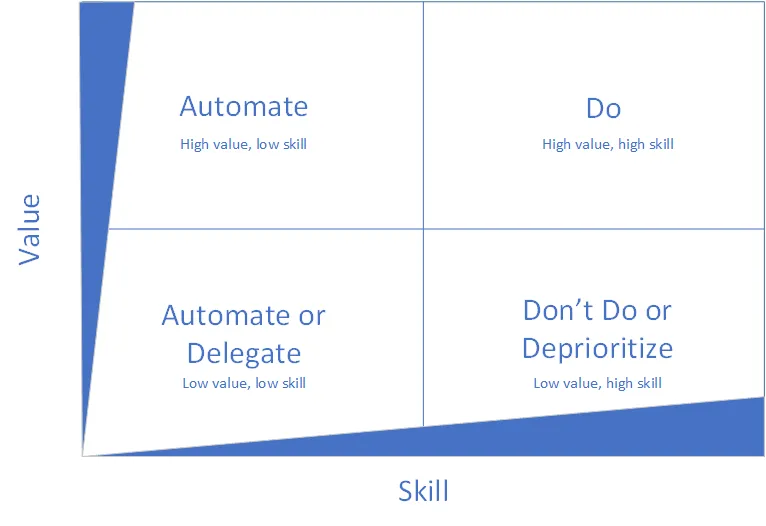
Automation is a key business technology to reduce the impact of repetitive, low-skill tasks on the workforce. Consider the following diagram:
When looking at business processes, they can generally be divided into one of the four quadrants:
- High value, low skill: Requires minimal specialist skill, but is critical or produces high-value output
- High value, high skill: Requires human intelligence or processing to determine value, skills, and relationships
- Low value, low skill: Requires minimal specialist skill and also produces an output of small value
- Low value, high skill: Requires a high degree of focus or skill but produces an output of small value.
As you examine tasks in your daily routine, you can evaluate them against the preceding matrix to help understand whether it is something that can or should be automated. Items that fall into the "low skill" quadrants are very good candidates for automation.
Look at the following examples:
- Running a report of the previous day's sales totals is a repetitive task that requires low specialist skill. If possible, you should seek to automate this task.
- Calling a customer for follow-up on a demo unit that was sent. This is a high-touch, high-value activity, but requires the personalization and complexity of human relationship management to execute effectively. This task is not a good candidate for automation.
In the upcoming sections and chapters, we're going to get familiar with the terminology and interface of Power Automate, and then learn how to connect to common applications to solve business problems.
Reviewing general terminology
You've already seen a few terms, and if you're familiar with SharePoint or other collaboration tools, they may be recognizable. But just to make sure we have a solid foundation on which to build, we're going to go over some basic terminology, and then we'll start getting into specific Power Automate terminology.
Business process
A business process is any sequence of tasks needed to accomplish the business's purpose. This may be something as simple as submitting a time card or getting a signature on a purchase order. Business processes generally fall into three categories:
- Primary or operating processes: These typically result in some sort of customer value delivery, such as a customer placing an order and the business shipping a product. They also may include things such as product design and engineering.
- Support: These processes are necessary for the primary or operating processes to take place. For example, purchasing materials to make a product, or training an employee would generally be regarded as support processes.
- Management: These are processes to oversee the operating and support processes, or to improve those processes. Examples of management processes might be reviewing and making recommendations about the procurement or employee onboarding processes.
Automation can be used with processes in all of these categories. Power Automate can be used to automate some or all parts of many types of business processes.
Workflow
A workflow can be thought of as the individual steps to achieve a particular business process. For example, employee onboarding may be a business process, and ordering a new computer may be a workflow task associated with completing the employee onboarding business process.
Power Automate can be used to automate some or all parts of a workflow.
REST
REST is an industry acronym for REpresentational State Transfer. It is used to describe a method for interacting with computer systems. In a REST-based system, client devices generally send HTTP verbs (or actions) to a target system uniform resource identifier (URI) to input or retrieve data.
For more information on the history and design principles of REST architectures, refer to https://restfulapi.net/.
Like many technologies on the Microsoft 365 platform, Power Automate utilizes REST to enable a high volume of performant transactions.
Next, we'll look at Power Automate-specific terminology.
Learning Power Automate terminology
As we begin working with Power Automate, it will be important to understand the core terminology that is being used. You'll need to be able to differentiate between the following terms so you can choose where to apply the correct business logic and processes.
Flow
Flow is simply the logical grouping of connectors, triggers, conditions, and actions used to automate actions. Flows are currently divided into the following categories:
- Automated: Flows that happen based on triggers or events
- Button: Also known as Instant or Manual, these occur when initiated by a user
- Scheduled: Timed events that occur at specific intervals
- Approval: A process where requests are routed through an approval chain
- Business process: A high-level process comprising smaller tasks and workflows
- UI flows: Also known as Robotic Process Au...