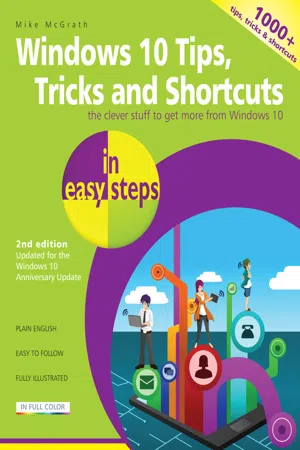
Over 1, 000 useful tricks of the trade to make Windows work more efficiently for you, all revealed in this book. This second edition of Windows 10 Tips, Tricks & Shortcuts in easy steps has been updated to cover the Windows 10 Anniversary Update (released August 2nd, 2016).Learn how to customize the interface to suit your needs; boost your PC’s performance with simple tweaks; quicken Startup and Shutdown times; save time by keeping your files organized; keep your hard drive lean; quickly repair Windows 10; give your PC a free tune-up; keep net browsing safe, private and efficient; keep tabs on other users’ activities; guard your PC against viruses and prying eyes; and use a PC to build a home entertainment center.With keyboard shortcuts throughout to help you save time, this guide is a great investment for all Windows 10 users!
- English
- ePUB (mobile friendly)
- Available on iOS & Android
eBook - ePub
Windows 10 Tips, Tricks & Shortcuts in easy steps, 2nd Edition
About this book
Trusted by 375,005 students
Access to over 1 million titles for a fair monthly price.
Study more efficiently using our study tools.
Information
1
Windows 10 Interface
Windows 10 provides a user interface designed for both touchscreen devices and standard screens. Here, we explore its main features.
Device Modes
Signing In
Start Screens
More Menus
Navigation
Organization
Apps
Device Modes
With Windows 10, Microsoft has created an operating system designed to be compatible with a range of different devices. To make this possible, Windows 10 has a new feature called “Continuum” that helps the operating system work better with devices that support both a mouse and keyboard, and touch input. Continuum offers two interface modes for each type of device:
Desktop mode
When a device is in Desktop mode, the layout of the interface is appropriate for mouse and keyboard input. This interface provides a Start menu containing an A-Z list that you can click to launch applications (“apps”). The apps appear in windows, and you can navigate using the mouse buttons or keyboard shortcuts. When you disconnect a mouse and keyboard, or flip your laptop around, you are prompted to change into Tablet mode.
Tablet mode
When a device is in Tablet mode, the layout of the interface is appropriate for touchscreen input. This interface provides a Start screen containing tiles that you can tap to launch apps. The apps appear full-screen, and you can navigate using touch gestures. When you connect a mouse and keyboard, or flip your laptop around, you are prompted to change into Desktop mode.

Windows 10 is one operating system with two interfaces – courtesy of Continuum.
Tablet mode is less demanding of system resources, and its introduction in Windows 10 clearly indicates that Microsoft considers mobile devices to be where the future lies.
Windows 10 shares its styling and kernel code across multiple devices including smartphones, tablets, PCs and the Xbox console. Also, Windows 10 provides many Universal Windows app programs that are designed for both Desktop and Tablet modes. This move towards cross-device compatibility is one which is intended to firmly establish Microsoft in the mobile market.

The New icon pictured above indicates a new or enhanced feature introduced in Windows 10 or in the Windows 10 Anniversary Update. For example, the Continuum feature is new in Windows 10.
A key element in this is the OneDrive app, which enables users to store all their data online and synchronize that data across all their devices. As a result, they will be able to log in to OneDrive on any Windows 10 device and immediately access their data, preference settings, and media, on whatever or whoever’s device they are using. So Windows 10 revolves around convergence for all devices, but let’s start by taking a look at the various elements that comprise the Windows 10 interface.
Signing in
Lock screen
The first thing you’ll see when you start up is the Lock screen, which by default shows the time/date, power, and network status.

Give your feedback about the Lock screen background – if you don’t like it, Windows 10 will change it for you.

Although a Lock screen is not strictly necessary with a non-touchscreen device, it is a useful place to display information.
The Lock screen is necessary because Windows 10 is a touch-supportive operating system that requires a protective barrier to prevent accidental input. Microsoft has evolved this basic function by enabling users to customize the screen by changing its background and by specifying various notifications to be displayed.
Logon screen
Tap or click anywhere on the Lock screen to reveal the Logon screen, where you can enter your user password or PIN to sign in.

Many Windows 10 app...
Table of contents
- Cover
- Title
- Copyright
- Contents
- 1 Windows 10 Interface
- 2 Performance
- 3 Startup & Shutdown
- 4 Productivity
- 5 Things You Can Do Without
- 6 Customization
- 7 Paranoia
- 8 Security
- 9 Installation/Setting Up
- 10 Shortcuts
- 11 The Internet
- 12 Email
- 13 Multimedia
- 14 Miscellaneous
- Back Cover
Frequently asked questions
Yes, you can cancel anytime from the Subscription tab in your account settings on the Perlego website. Your subscription will stay active until the end of your current billing period. Learn how to cancel your subscription
No, books cannot be downloaded as external files, such as PDFs, for use outside of Perlego. However, you can download books within the Perlego app for offline reading on mobile or tablet. Learn how to download books offline
Perlego offers two plans: Essential and Complete
- Essential is ideal for learners and professionals who enjoy exploring a wide range of subjects. Access the Essential Library with 800,000+ trusted titles and best-sellers across business, personal growth, and the humanities. Includes unlimited reading time and Standard Read Aloud voice.
- Complete: Perfect for advanced learners and researchers needing full, unrestricted access. Unlock 1.4M+ books across hundreds of subjects, including academic and specialized titles. The Complete Plan also includes advanced features like Premium Read Aloud and Research Assistant.
We are an online textbook subscription service, where you can get access to an entire online library for less than the price of a single book per month. With over 1 million books across 990+ topics, we’ve got you covered! Learn about our mission
Look out for the read-aloud symbol on your next book to see if you can listen to it. The read-aloud tool reads text aloud for you, highlighting the text as it is being read. You can pause it, speed it up and slow it down. Learn more about Read Aloud
Yes! You can use the Perlego app on both iOS and Android devices to read anytime, anywhere — even offline. Perfect for commutes or when you’re on the go.
Please note we cannot support devices running on iOS 13 and Android 7 or earlier. Learn more about using the app
Please note we cannot support devices running on iOS 13 and Android 7 or earlier. Learn more about using the app
Yes, you can access Windows 10 Tips, Tricks & Shortcuts in easy steps, 2nd Edition by Mike McGrath in PDF and/or ePUB format, as well as other popular books in Computer Science & Operating Systems. We have over one million books available in our catalogue for you to explore.